Find your way around: Ctrl+K and favourite Tools
Find any admin Tool with Ctrl+K, then keep your favourites at the top of the sidebar. Two small habits that make a busy Domma CMS admin easier to use.
Domma CMS can do a lot. Pages, media, forms, collections, the blog, SEO and the Tools you add all have their own place in the admin. As a site grows, finding that place can take longer than the job you came to do.
You do not have to learn the whole sidebar. Two habits make everyday work quicker: Ctrl+K to find a Tool, and favourites to keep the ones you use often close at hand.
Ctrl+K: type where you want to go
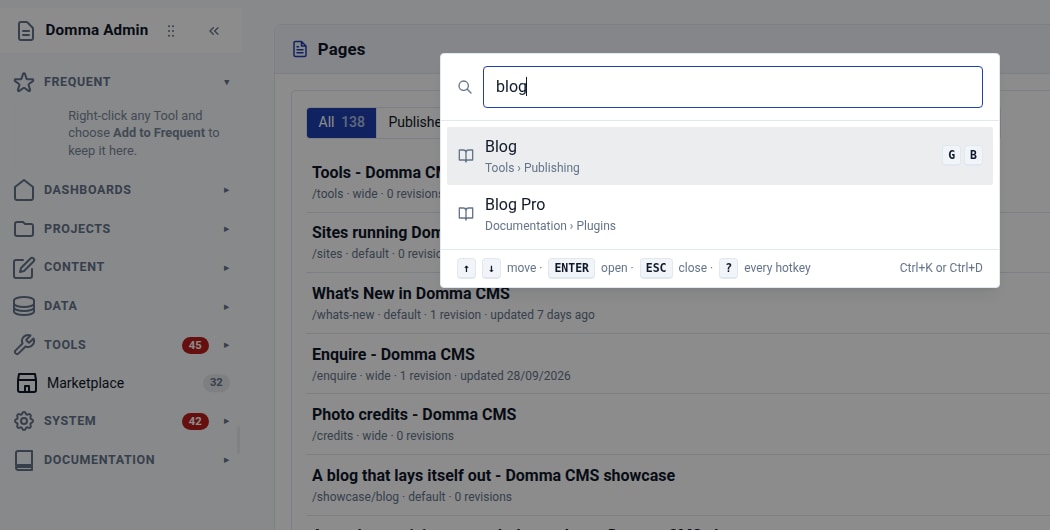
From the admin, press Ctrl+K. On a Mac, use ⌘K. A search box opens with the destinations available to you.
- Type part of the name: Blog, Media, Forms, SEO or Users.
- Use ↑ and ↓ to choose a result, or click it.
- Press Enter to open it.
Press Esc if you change your mind. You can also press Ctrl+K again to close the search.
The screengrab at the top shows a search for blog. Each result includes its place in the sidebar, so you can tell the Blog Tool from its documentation. You can jump there without opening folders one by one.
This search finds admin destinations by name. To find a particular post or page, open Blog or Pages first and use the search in that screen. If you are editing rich text or code, click outside the editor before using Ctrl+K: the editor may use that shortcut itself.
Add to Favourites: keep your regular Tools at the top
Finding a Tool is useful. Keeping it within reach is better when you open it every day.
In the current admin, your favourites live in the star-marked Frequent folder at the top of the sidebar. The menu calls the action Add to Frequent - think of it as “Add to Favourites”.
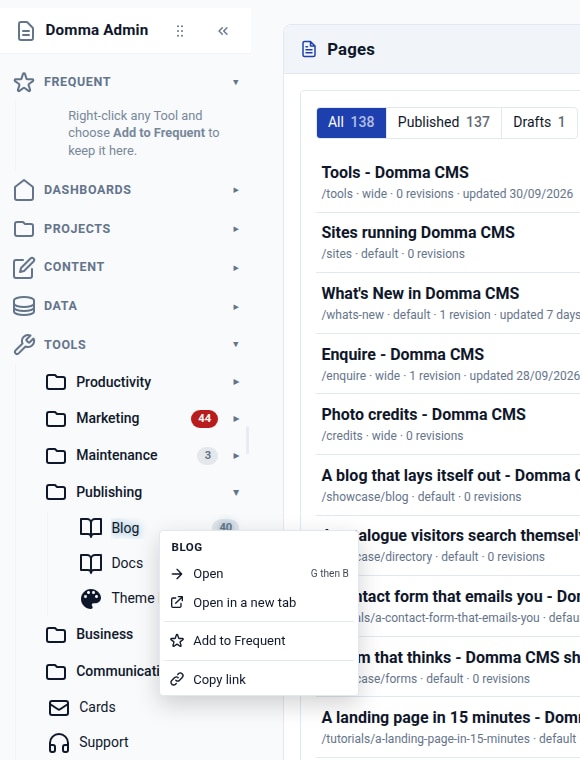
- Find the Tool in the sidebar and right-click its name.
- Choose Add to Frequent.
- Open Frequent at the top of the sidebar. Your shortcut is there.
You might keep Blog, Media and Pages together if you publish content, or Booking, Invoices and Contacts if you run a business. Pick the Tools that fit your day.
Your list is personal and follows you when you sign in from another browser. Other people's lists stay their own. A favourite is a shortcut: the Tool still lives in its usual sidebar folder.
Right-click a shortcut inside Frequent to Move up, Move down or Remove from Frequent. Removing it takes it out of your list; the Tool is still there to use. You can keep up to twelve favourites.
A little less clicking
The first nine Tools in Frequent also get a keyboard shortcut: press G, let go, then 1 for the first, 2 for the second, and so on. Reorder the list and those numbers follow its new order.
Press ? outside a text field to see the admin hotkeys available to you.
Next time you sign in, try one small change: use Ctrl+K to find the Tool you need, then add it to Frequent if it is part of your regular work. A large admin soon feels smaller when your daily Tools are one search or one click away.
Keep reading
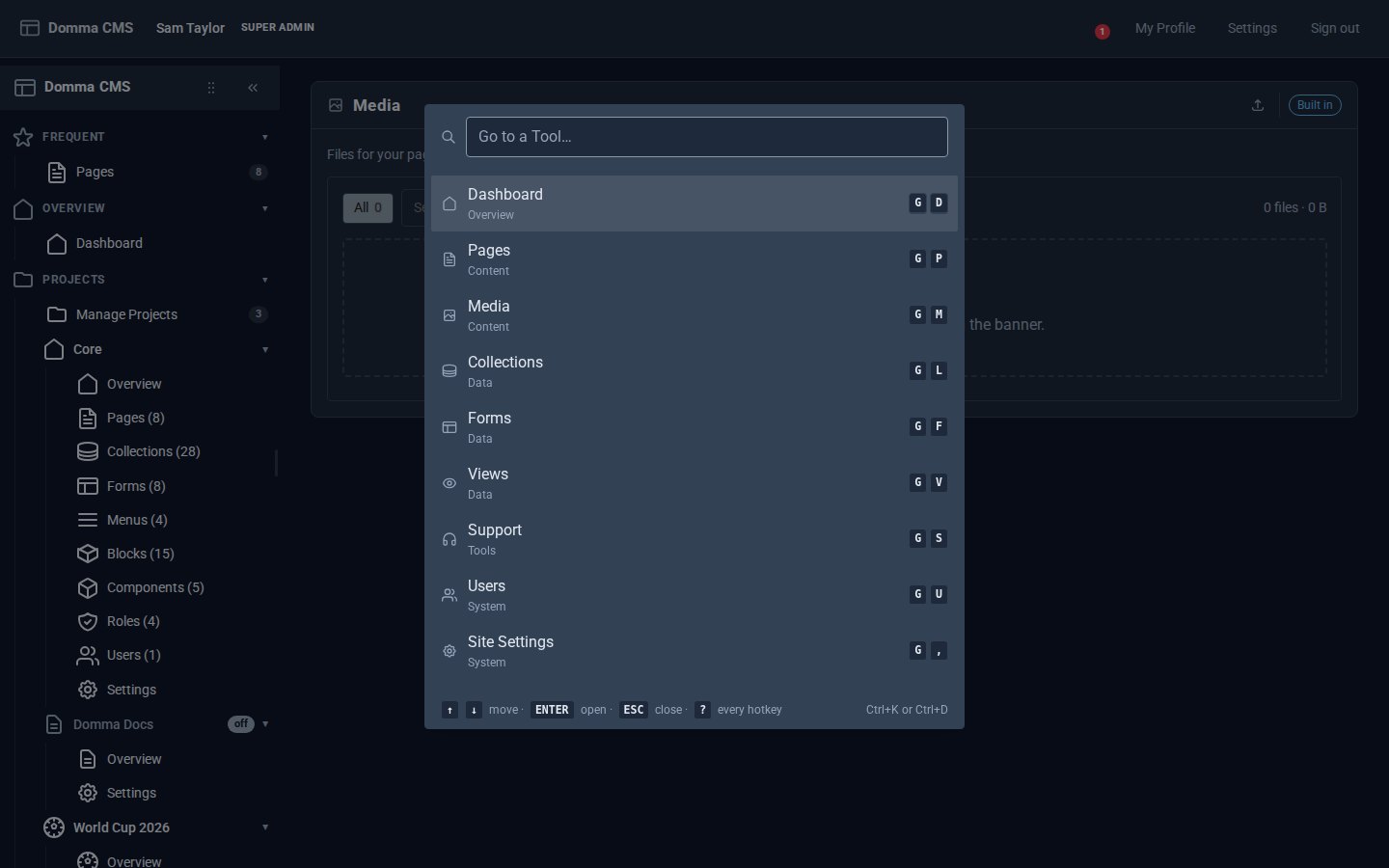
Every Tool, a keystroke away
Domma CMS 1.6: press G then a letter to open any Tool, G then 1-9 for your Frequent ones, Ctrl+K to find anything by name, and ? for the list.
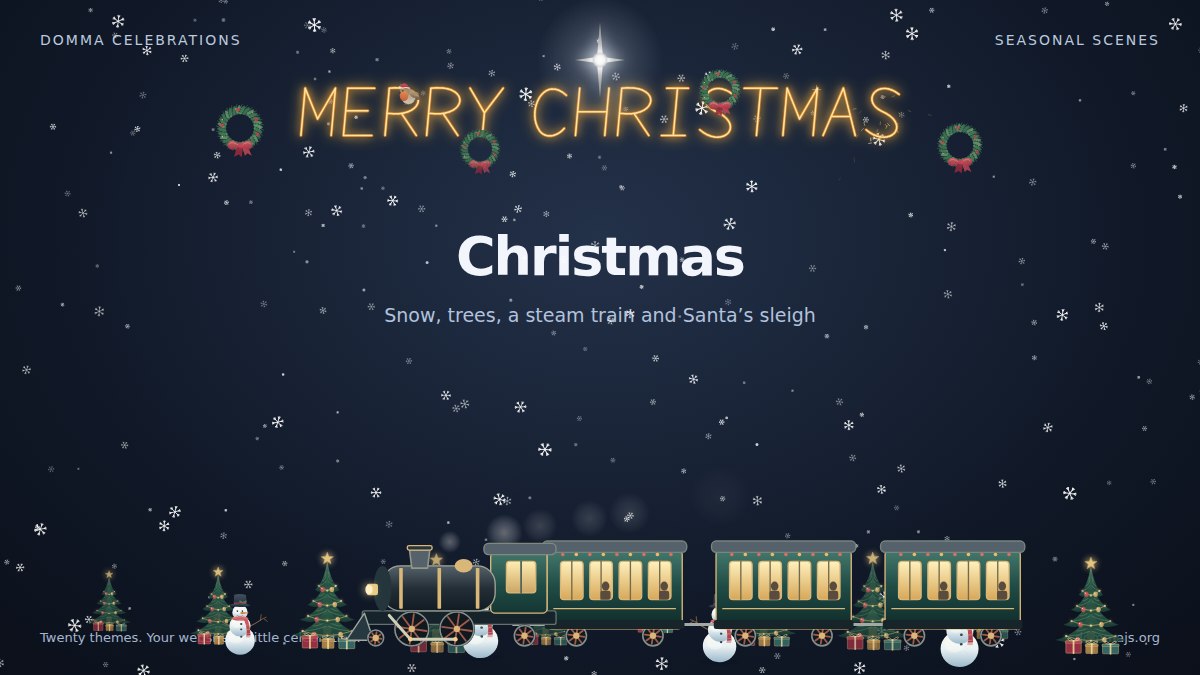
Meet Domma Celebrations: twenty ways to bring your website to life
Take a visual tour of all twenty Domma Celebrations themes, from Christmas and Halloween to summer gardens and personal sparkler greetings, with screenshots and a quick setup guide.

Leaving WordPress? Plan the move before you start
A WordPress move is more than an export. Inventory your content, plugins, URLs and forms first, then decide what to move, rebuild and test.