Tutorials Data and forms
A contact form that emails you
Build a contact form, have every message emailed to you, put it on a page and keep the bots out - in about ten minutes.
10 minutes BeginnerFree
You will build
ACME's Contact page: name, email and message, a thank-you when it is sent, and an email to the office for every one.
You need
- A Domma CMS site you can sign in to
- Your mail server's details (host, port, username and password), so the site can send email
Nothing to code
The form, the email and the spam protection are all settings. The answers are stored in the admin as well as emailed, so nothing is lost if an email goes astray.
Step 1: Let the site send email
The form emails you through your own mail server, so tell the site about it first. Go to System > Site Settings and open the Email tab:
- SMTP server: the host, port, username and password your email provider gives you. Tick Use TLS (port 465) if they say port 465.
- Sender: the From address and From name the emails come from - an address on your own domain, such as
website@acme.example.
Save, then use Send a test email further down the tab. If it arrives, you are ready.
Step 2: Create the form
Go to Data > Forms and click New form in the banner. Give it the Title Contact and click Create.
As you type, it shows the form's address: contact, and the shortcode you will use later, [form name="contact" /]. The address cannot be changed once the form exists, so choose the title with that in mind.
The form editor opens, with four tabs: Fields, Form Details, Settings and Actions.
Step 3: Add the fields
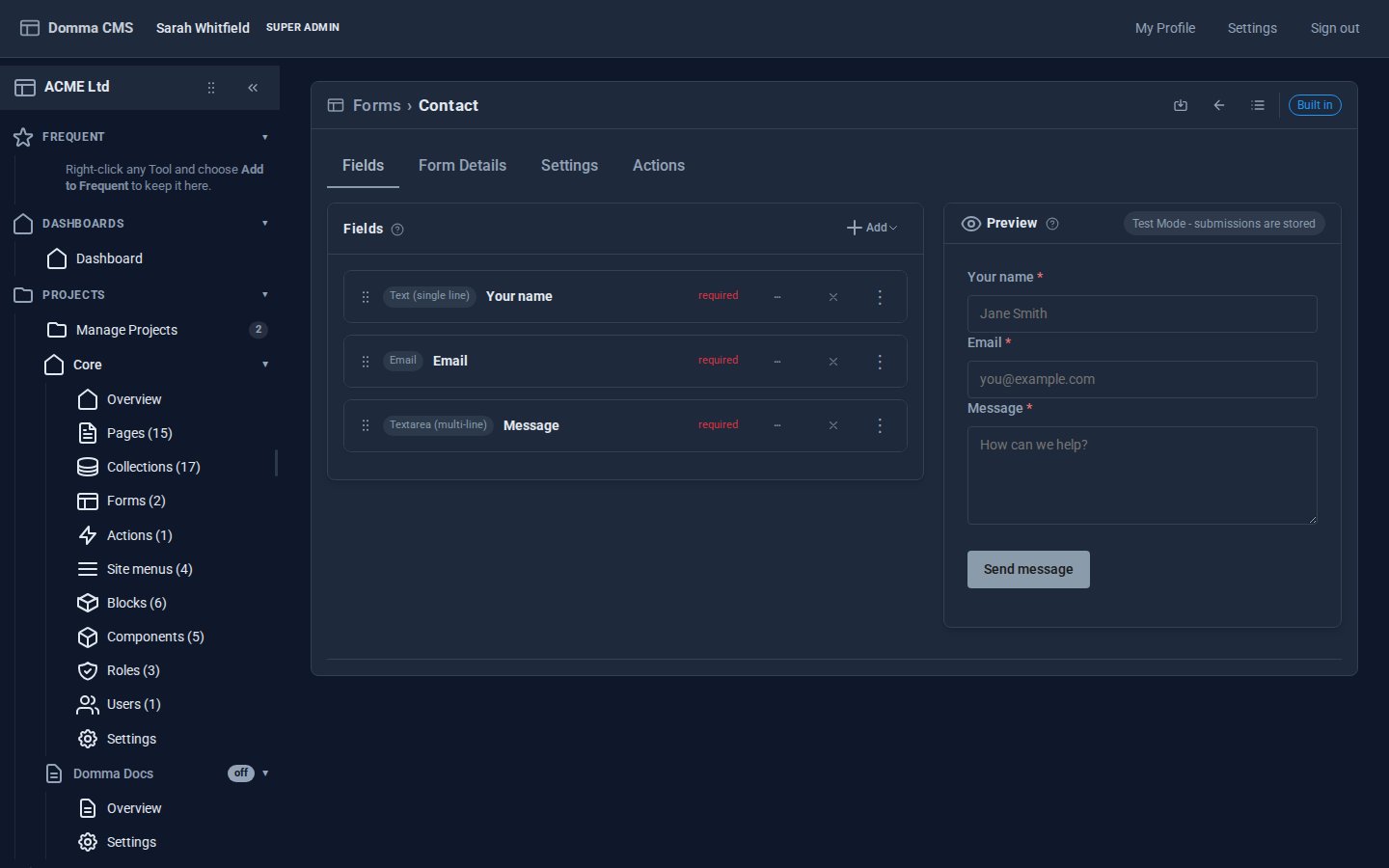
On the Fields tab, click Add, then Field. A new field appears as New Field; click it to open its settings. Make three:
| Label | Type | Required | Placeholder |
|---|---|---|---|
| Your name | Text (single line) | yes | Jane Smith |
| yes | you@example.com | ||
| Message | Textarea (multi-line) | yes | How can we help? |
The Field Name fills itself in from the label (your_name, email, message). That is the name each answer is stored under, so leave it be unless you have a reason to change it.
The preview beside the fields is the real form, drawn by the same code as your site, so what you see is what visitors get.
Step 4: Say thank you
Open the Settings tab.
- Success Message: what visitors see in place of the form once it is sent - for example Thanks - we will reply within one working day.
- Success Redirect URL: or send them to a page of your own instead, such as
/thank-you. If you fill this in, it takes priority over the message. - Submit Button: change Text from Submit to Send message.
Step 5: Email every message to you
Open the Actions tab. In the Email Action card:
- Tick Send email on submit.
- Recipients: the address that should get each message - several are fine, separated by commas.
- Subject Prefix is optional; it starts as
[Contact], so the subject reads [Contact] New submission.
Each email lists every field with its answer. If an email ever fails to send, the message is still stored and the site raises a notification, so nothing is lost.
![The Actions tab: Send email on submit ticked with office@acme.example as the recipient and [Contact] as the subject prefix, the CMS Action card, and Spam Protection with the honeypot field enabled](/media/tutorials/contact-form-email.jpg)
Click Save (or press Ctrl+S). There is no publish step: once saved, the form is live.
Step 6: Keep the bots out
Still on the Actions tab, the Spam Protection card is already doing its job:
- Enable honeypot field (on) adds a field people never see. Bots fill it in, and their messages are quietly thrown away. It also drops anything sent within two seconds of the page opening, which no person types that fast.
- Rate Limit (per minute) (3) is how many messages one visitor can send in a minute. Anyone who goes over is asked to try again later.
The defaults suit a contact form. Leave them on.
Step 7: Put it on a page
Open your Contact page in Content > Pages (or make one), and where the form should go, use Insert > Form in the editor's toolbar and choose Contact. Or type it yourself:
[form name="contact" /]
Save the page and open it on your site. Send yourself a test message, and wait a couple of seconds first, so the timing check does not take you for a bot.
Step 8: Read your messages
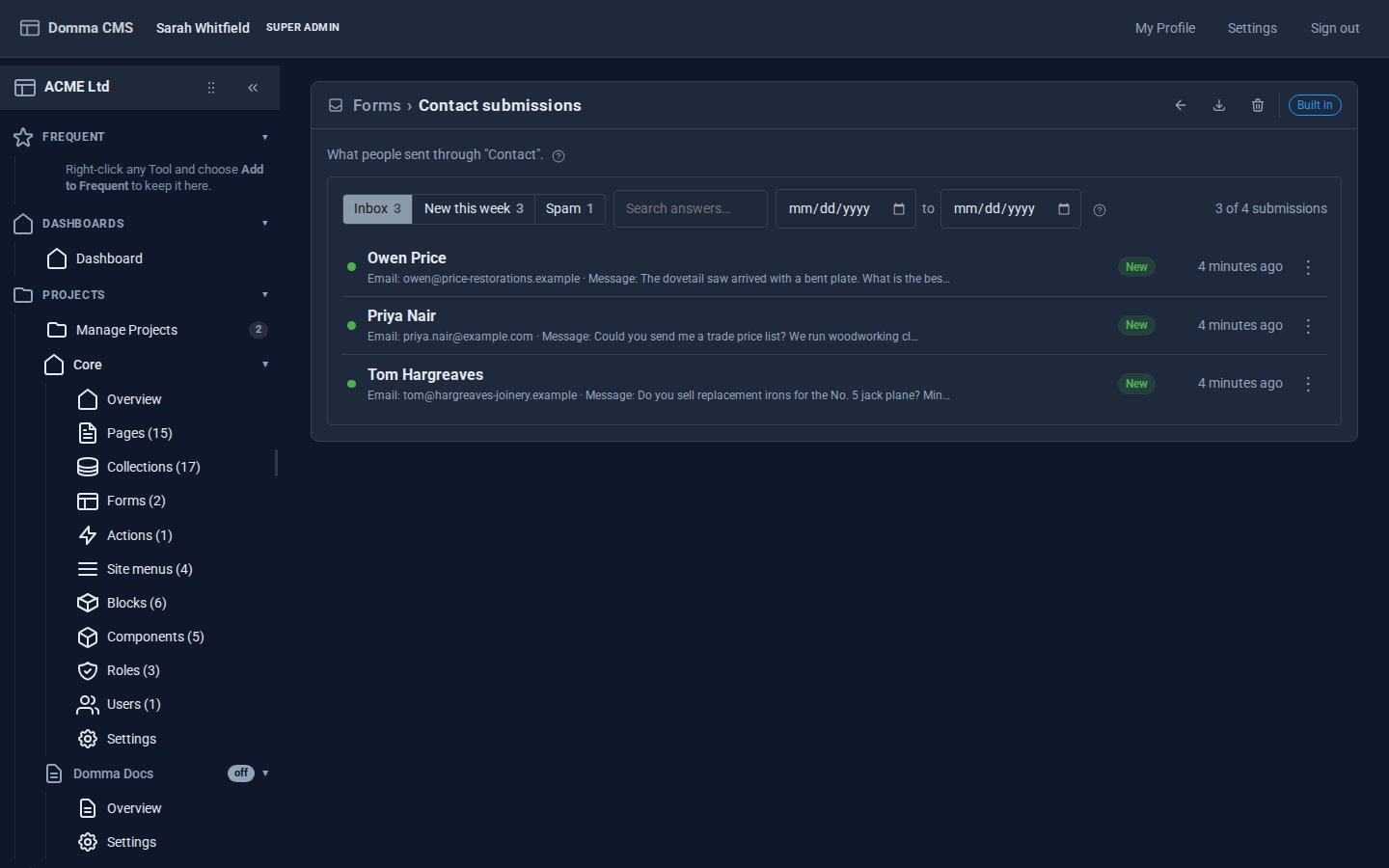
Every message arrives by email and is also kept in the admin. In Data > Forms, right-click the Contact form and choose Submissions:
- Inbox, New this week and Spam sort them, and you can search the answers and pick a date range.
- Click one to read it in full. Mark as spam moves it out of the inbox, and Not spam brings it back.
- Right-click any message to copy it or email the sender.
- Export downloads them all as CSV or JSON.
What you built
A contact form with a thank-you, an email to you for every message, every message kept in the admin, and spam protection you did not have to think about.
Keep going
- A multi-step form with conditional logic - questions that appear only when they are needed
- Approve an application with an Action - do something with an entry at the press of a button
- Your first collection - the answers live in one, so they can be shown on a page too
Try it on your own site
Everything in this tutorial is free. One command gets you a site to follow along on.