
Tutorials Running your site
Group your site with projects
Make a project, let its pages file themselves by address, file a collection and a form under it, and give one person access to that project and nothing else.
20 minutes BeginnerFree
You will build
ACME's Members project: the members' pages, a members collection and the join form under one name, and a login for Jo, the membership secretary, that sees only that.
You need
- A Domma CMS site, signed in as an administrator
- A few pages, a collection and a form to file - or make them as you go
- A second user account for Jo
- Domma CMS 1.6.4 or later for Step 4 - earlier versions saved Project access but did not apply it
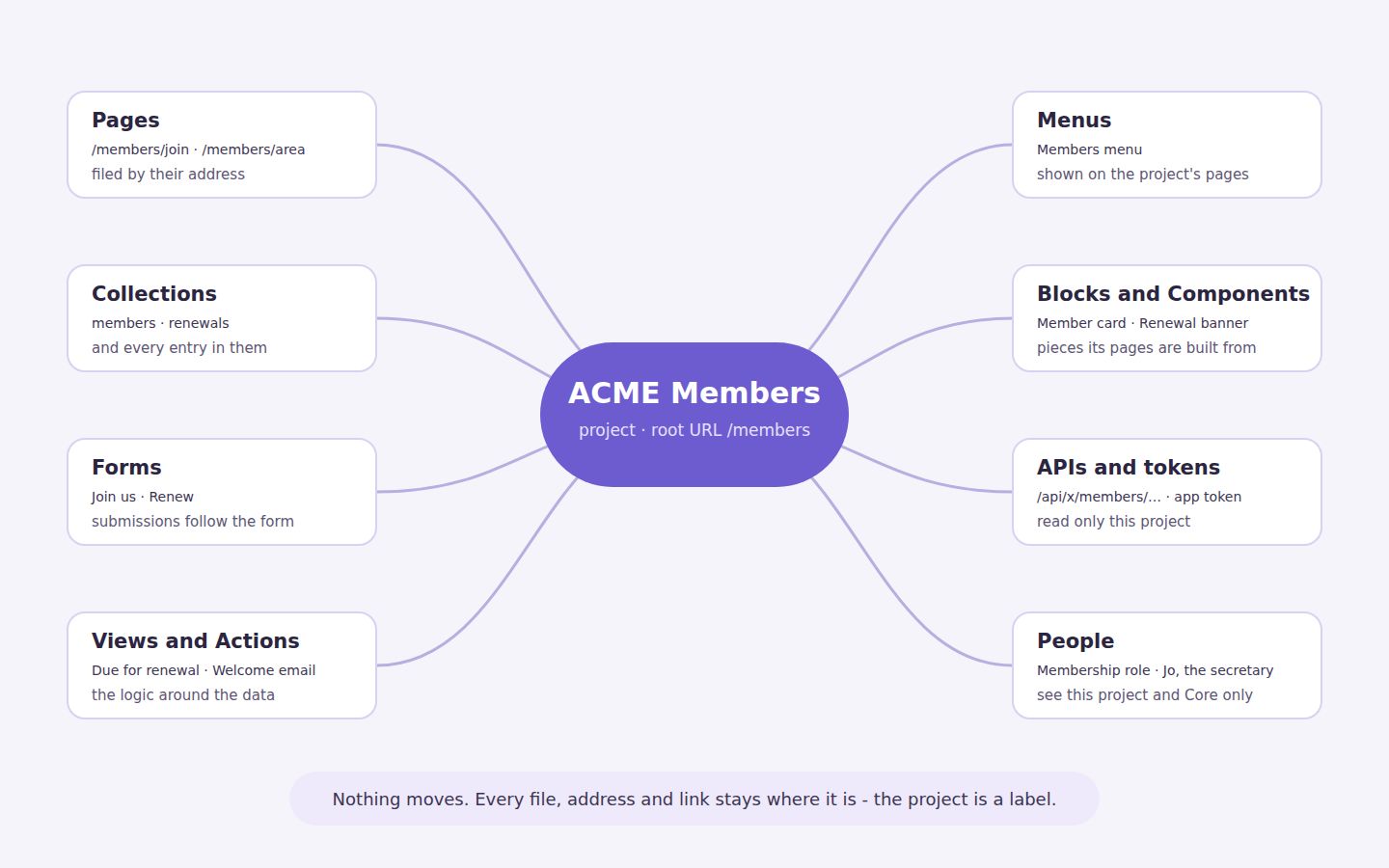
Nothing moves
Filing something under a project adds a label. Addresses, files, entries and links all stay exactly where they are, and taking the label off later breaks nothing.
Step 1: Make the project
In the sidebar, open Projects > Manage Projects and click + (New project) in the banner.
- Name:
ACME Members. The slug follows as you type -acme-members. It is the project's id and cannot be changed later, so get it right now. - Description: a line for your team, such as The members' area: joining, renewals and the member list.
- Icon:
users, or browse with the grid button. - Root URL:
/members. Every page under that address will belong to the project by itself. - Sort order: leave it at 0, or give it a number to place it among your other projects.
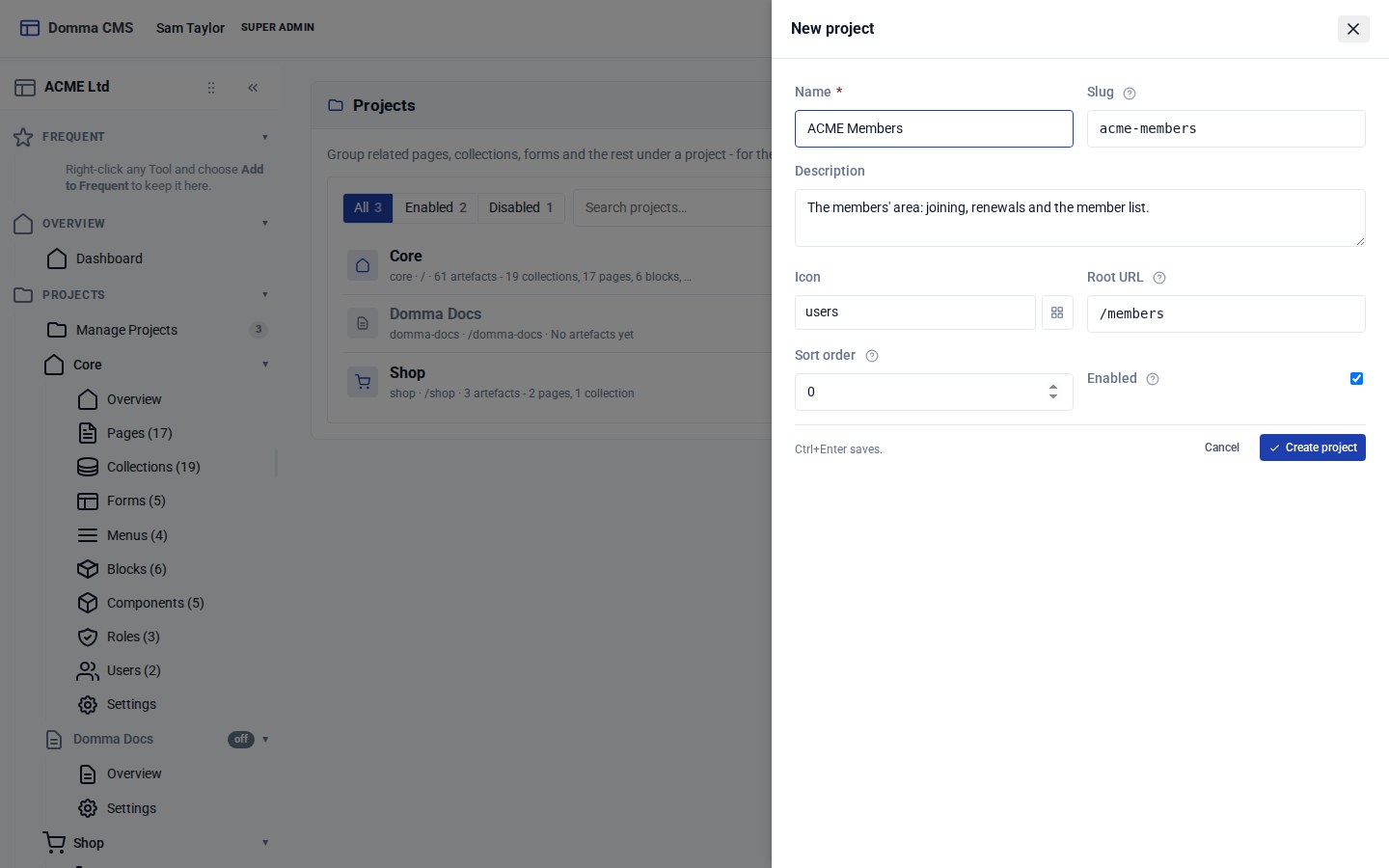
Click Create project. ACME Members now has its own section in the sidebar, under Core.
Step 2: Watch the pages file themselves
Open the project's overview from its sidebar section. The Pages tile already counts every page whose address starts with /members - /members/join, /members/area - without you touching them.
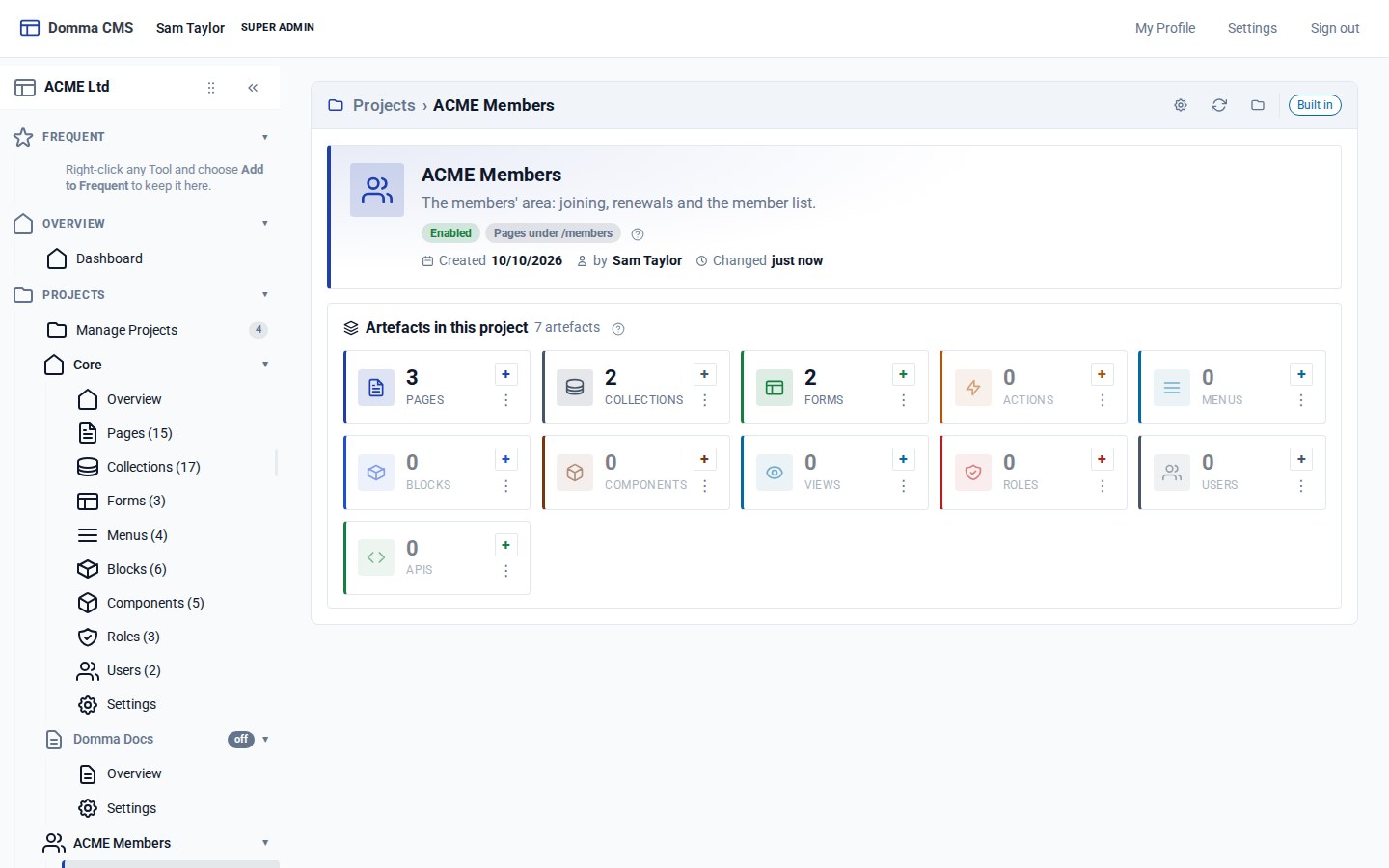
Make a new one to see it: click + on the Pages tile and create /members/renewals. It lands in the project because of its address.
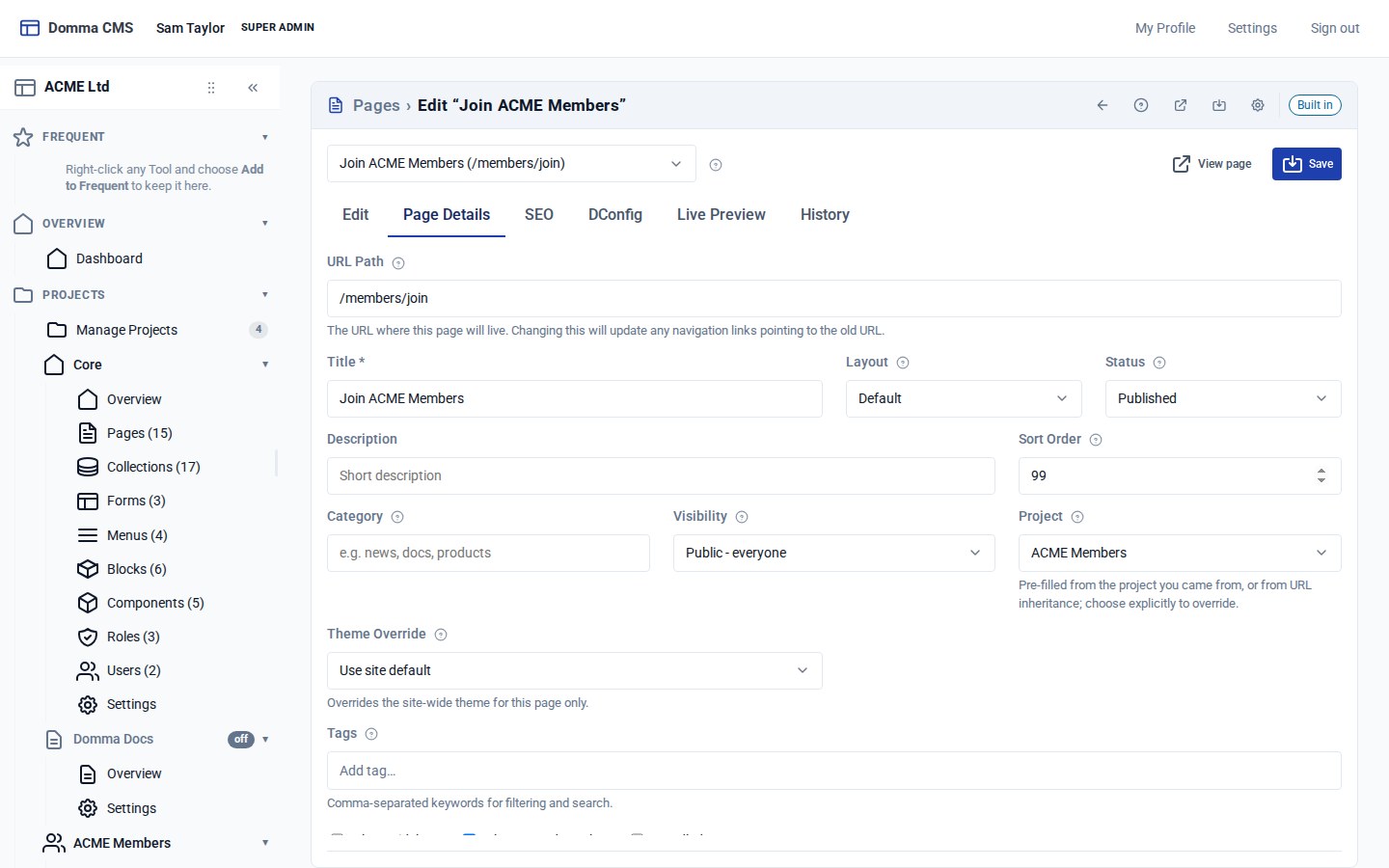
A page that lives somewhere else can still join. Open it in the page editor, go to the Page Details tab and set Project to ACME Members. Left to inherit, a page goes wherever its address says - here, or Core.
Step 3: File a collection and a form
Collections and forms have no address, so they are filed by hand.
- Open the Members collection's Settings tab, set Project to ACME Members and save. Its entries come with it.
- Open the Join us form in the form editor. Under Form Details, set Project to ACME Members and save. Its submissions follow the form.
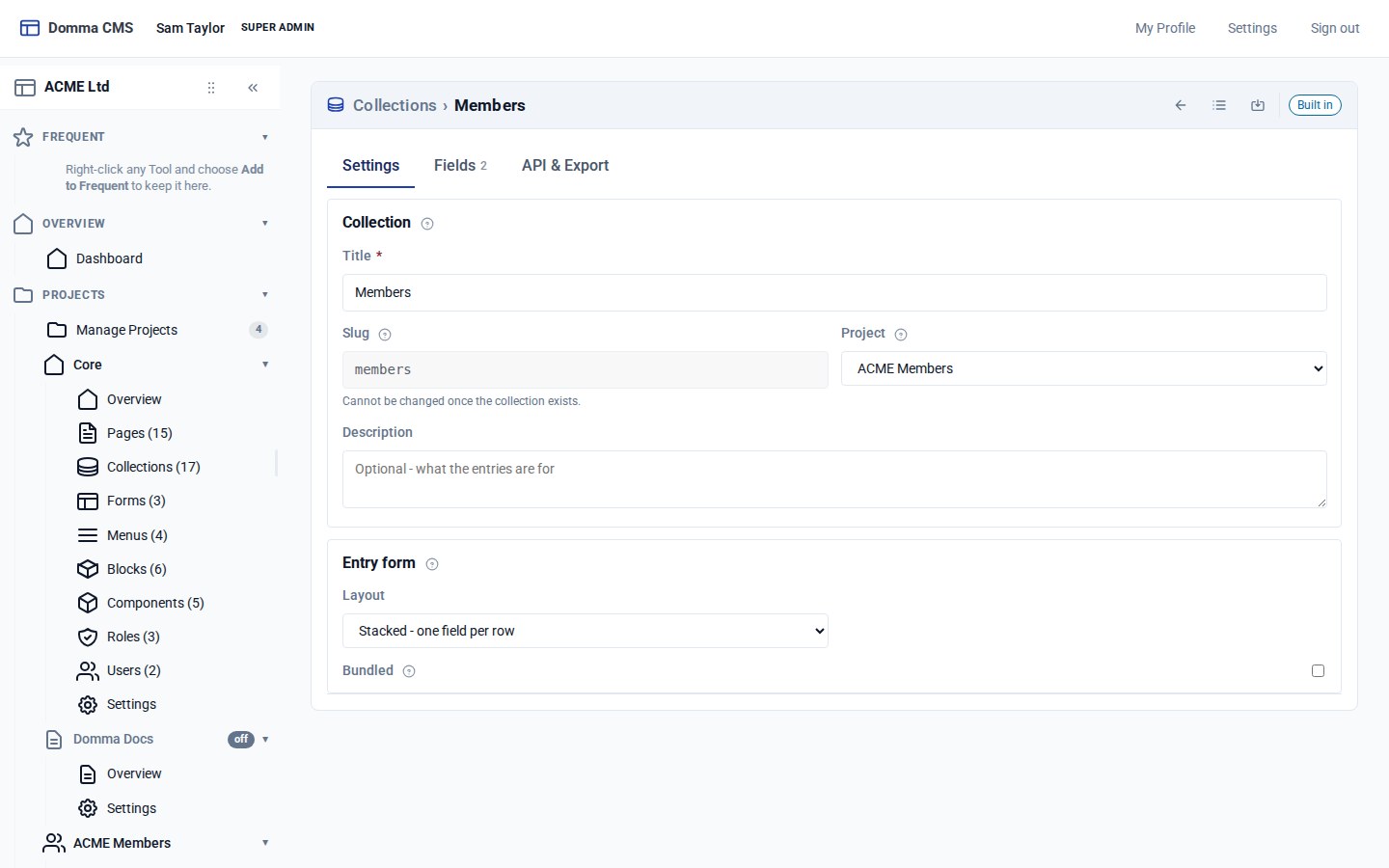
Back on the overview, the Collections and Forms tiles now count them. The collection is still at the same slug, the form is still on the same page, and every [collection] and [form] shortcode that shows them still works.
Step 4: Give Jo access to the project
Open Users, click Jo's account, and find the Projects card.
- Project access: click ACME Members. Jo can now see that project's pages, collections and forms - and Core - and nothing else.
- Owned by project: choose ACME Members too. This only decides where Jo is listed in the sidebar; it does not limit anyone.
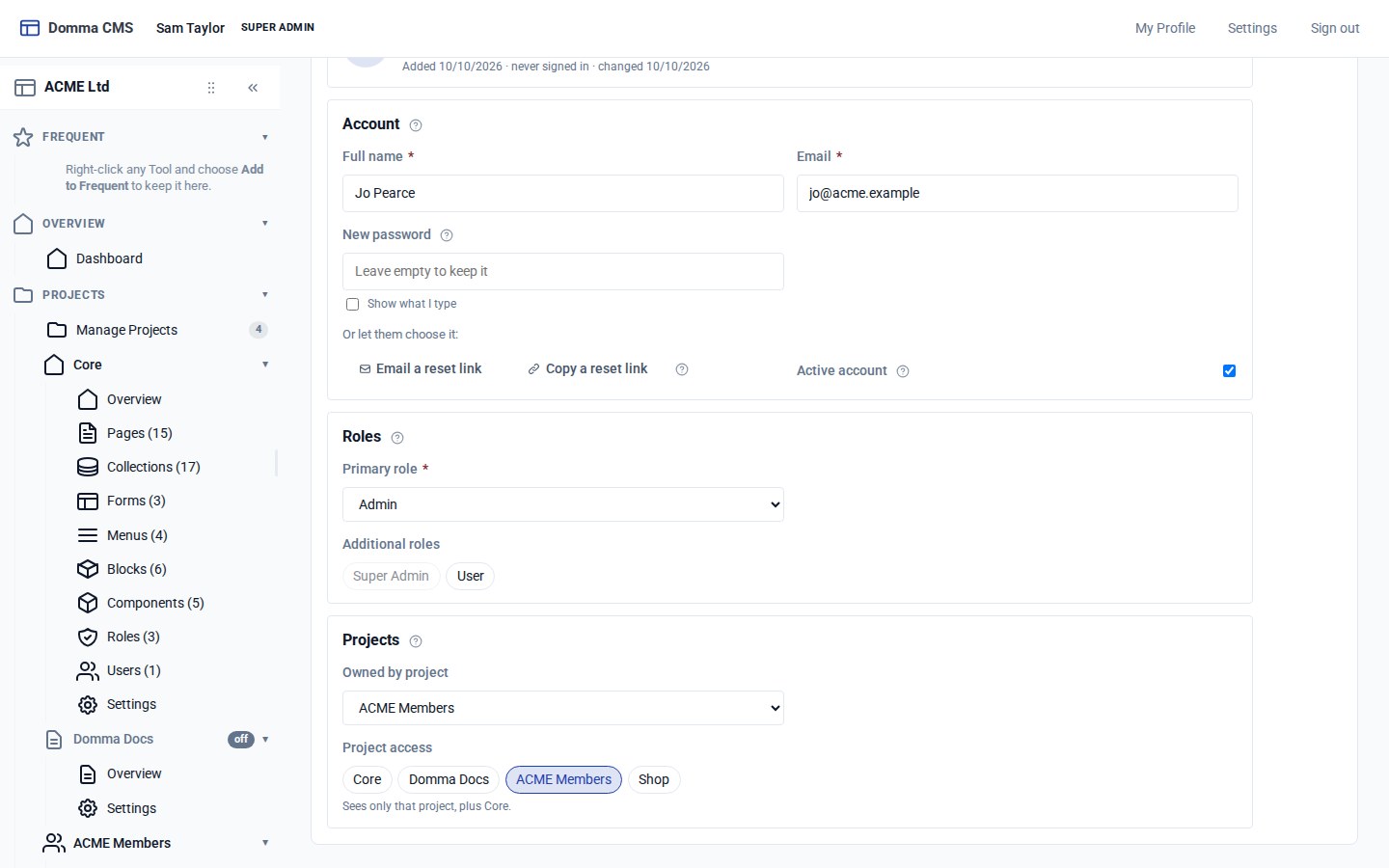
Save. Leaving every Project access choice empty means no restriction, which is why your own account still sees everything. A change takes effect straight away - Jo does not need to sign in again, though an open admin shows the new sidebar after a reload.
Step 5: Check it as Jo
Open a private browser window and sign in as Jo. Manage Projects lists Core and ACME Members, and the sidebar has only their sections. The shop's collections, pages and forms are simply not there, and opening one by its address is refused.
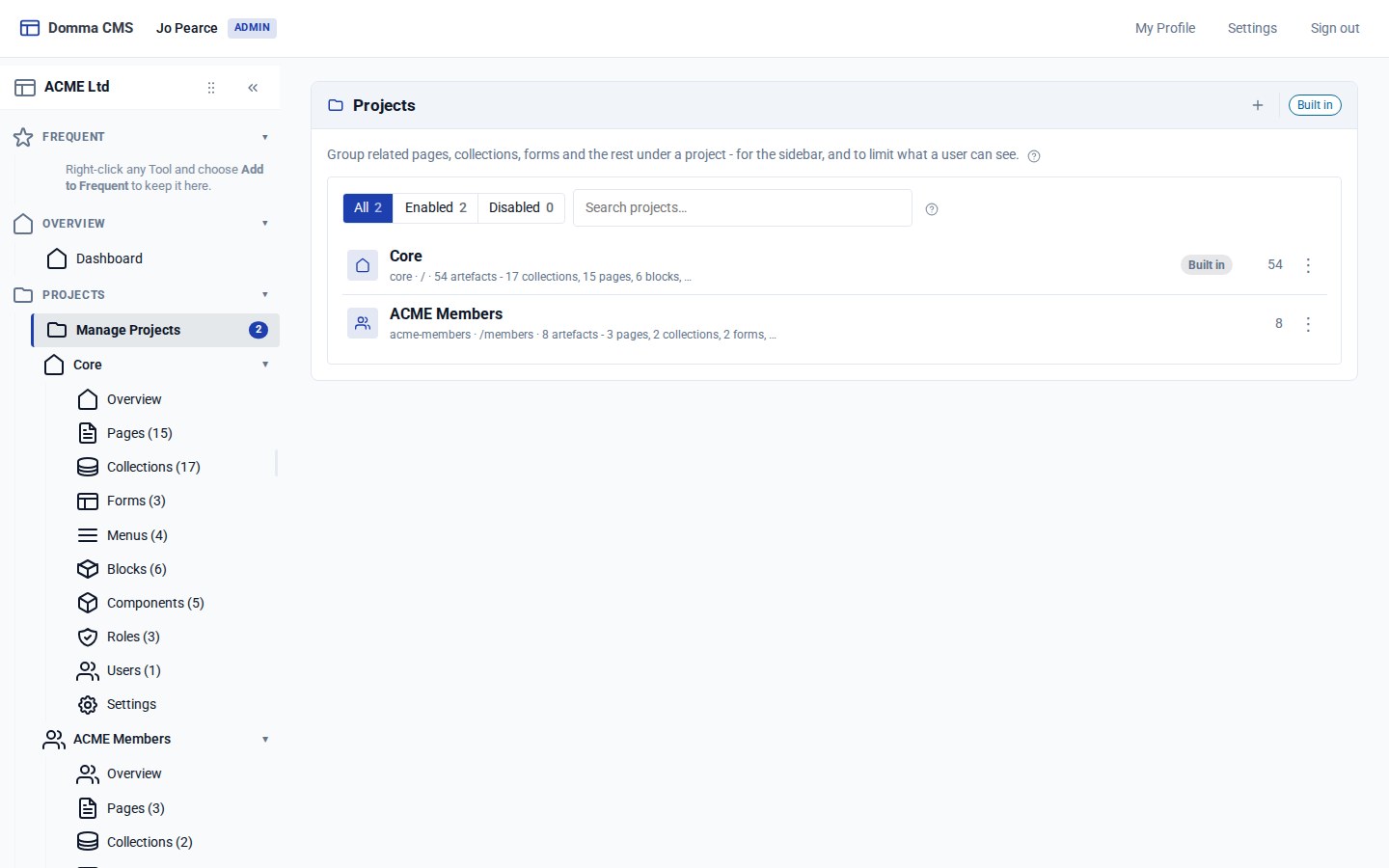
Jo's role still decides what Jo may do - edit pages, read entries, and so on. The project decides where. Together they make a login that can run the members' area and cannot touch the rest of the site.
Step 6: Switching off and tidying up
In the project's Settings:
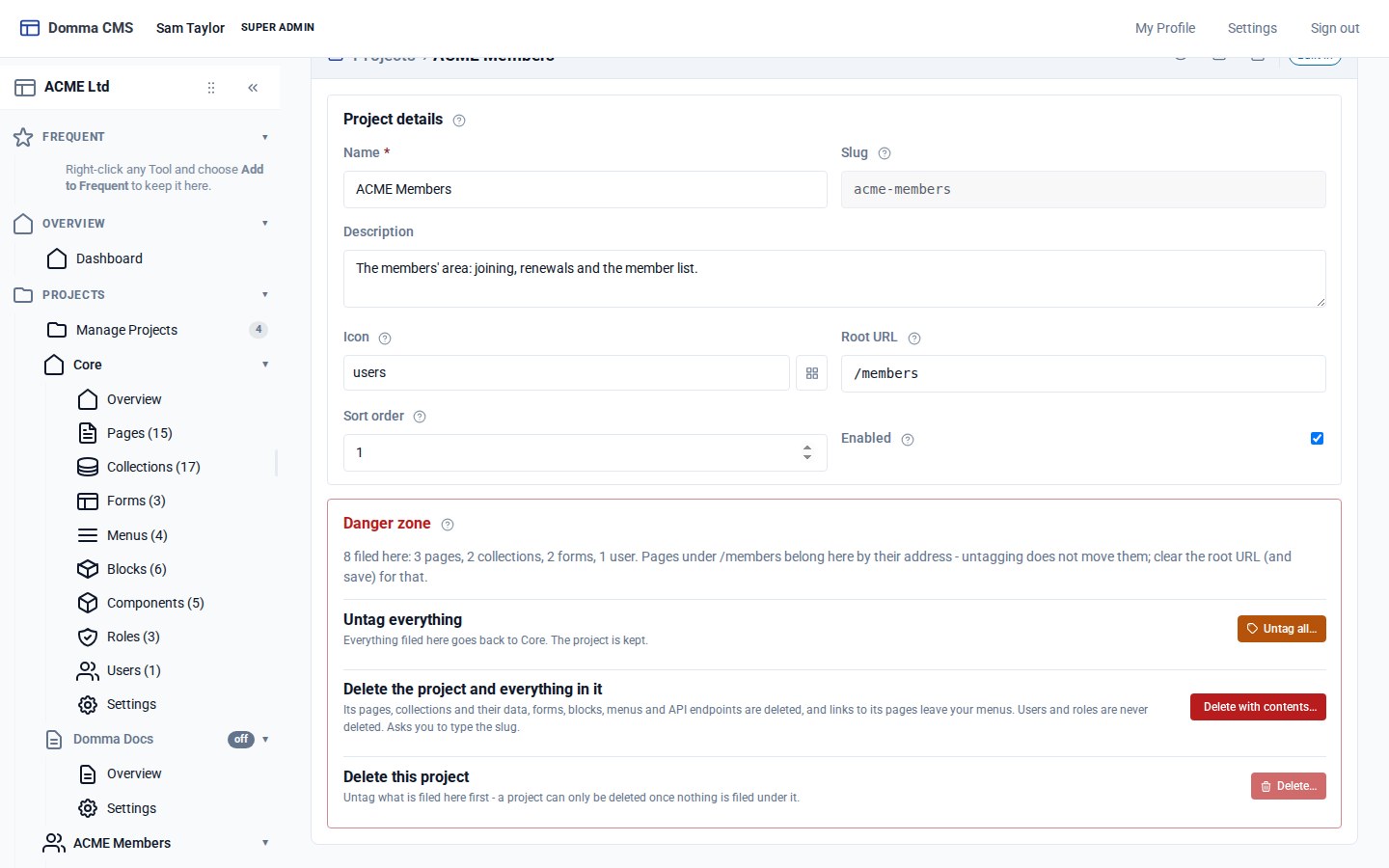
- Enabled off: the project's public pages answer 404 and its API stops answering, while you carry on editing in the admin. Switch it on and everything is back, untouched.
- Untag all… sends everything filed by hand back to Core. It all stays where it is; only the label goes. Pages that belong by their address stay with the project until you clear its root URL.
- Delete with contents… removes the project and everything filed under it. It lists exactly what will go and asks you to type the slug back. It refuses while a user or role still belongs to the project - people are never deleted with content.
What you built
A members' area your team can find in one place, whose pages file themselves by address, and a login for the membership secretary that reaches that area and nothing else - without moving a single page or entry.
Keep going
- Build a client portal with a confined role - limit which admin screens a role can open
- Your first collection
- Projects and roles - the bigger picture
Try it on your own site
Everything in this tutorial is free. One command gets you a site to follow along on.