
Tutorials Pro Tools
Import your contacts from Google
Bring your Google contacts into Contacts Pro: export them from Google, check the preview, merge the people you already have, and undo it if you need to.
10 minutes BeginnerPro
You will do
Move Priya's customers and suppliers from her Google account into ACME's admin - labels as groups, birthdays and all - without doubling up the people already there.
You need
- Contacts Pro on your site
- A Google account with contacts in it
- The Create permission for Contacts, and Edit to merge into contacts you already have (Admin has both)
Nothing is lost
Nothing is saved until you press Import. Merging only ever adds, and the contacts an import adds can be taken back for 24 hours.
Step 1: Export your contacts from Google
Open Google Contacts and click Export at the top of the list (the download icon). If it is not there, tick any contact first.
- Choose which contacts: Contacts for all of them, or one label - say Suppliers - to bring in just those.
- Under Export as, choose Google CSV.
- Click Export. Google saves a file called
contacts.csv.
Step 2: Open the importer
In the admin, open Contacts. Click ⋮ at the end of the toolbar and choose Import contacts….
Drop contacts.csv onto the panel, or click Choose a file… and pick it. A file can be up to 5 MB and 5,000 contacts. A bigger address book goes in a label at a time.
Step 3: Check where each column goes
For a CSV, the importer lists every column that has something in it, with an example value from the file and where it will go. A Google file arrives already matched: First Name to First name, E-mail 1 - Value to Email, Labels to Groups, Birthday to Birthday, and so on.
Change any you like from its drop-down:
- Add to notes keeps a value in the contact's notes as "Heading: value". Columns that match no field go there by default, so a nickname or an anniversary is never thrown away.
- New custom field makes a text field the moment you import, so it becomes a column you can sort and filter by. Priya's Google contacts have an Account number custom field: Google exports it as a Custom Field 1 - Value column, and the importer names the new field from Google's own label - Account number.
- Leave out skips a column altogether.
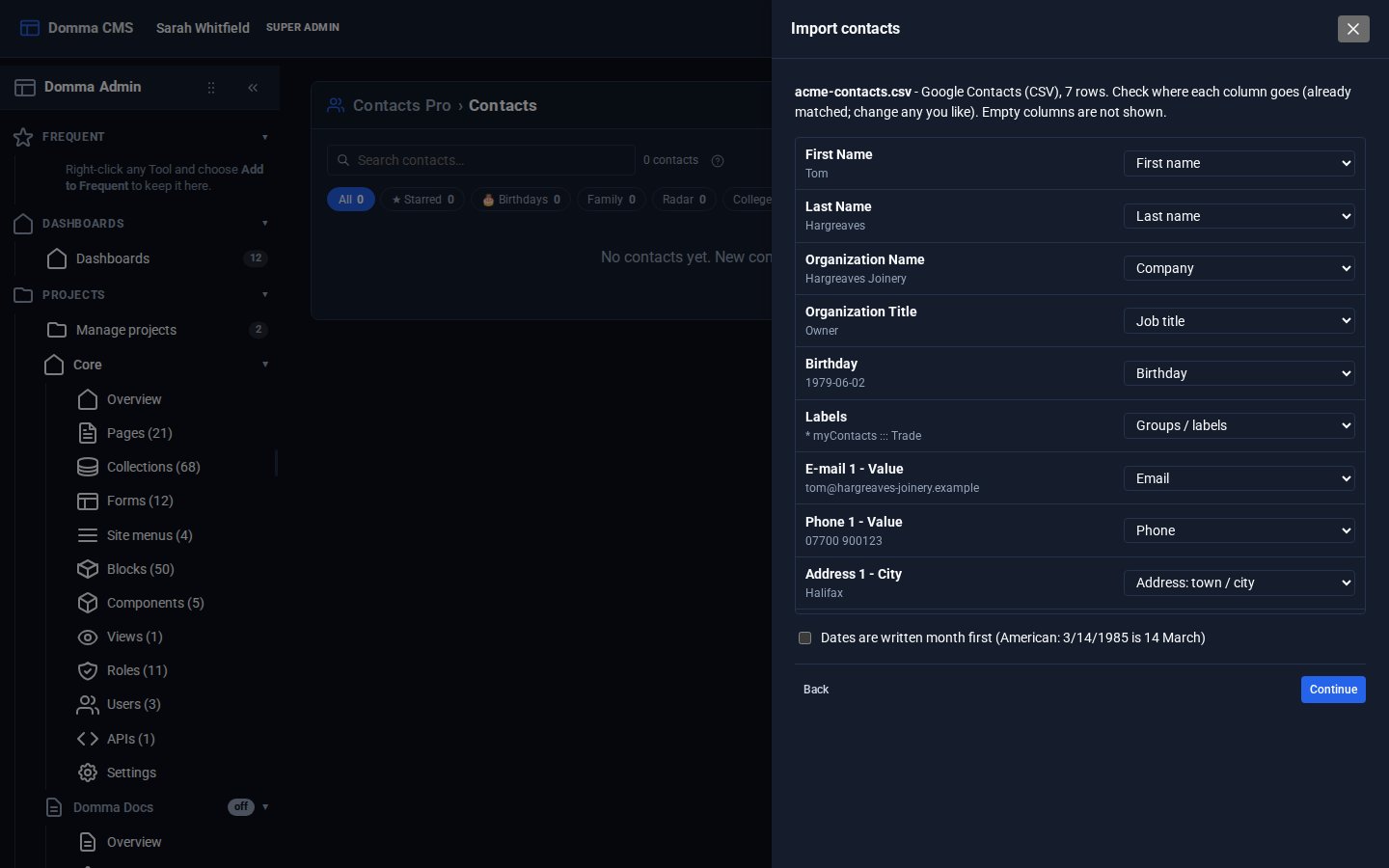
Click Continue.
Step 4: Read the preview
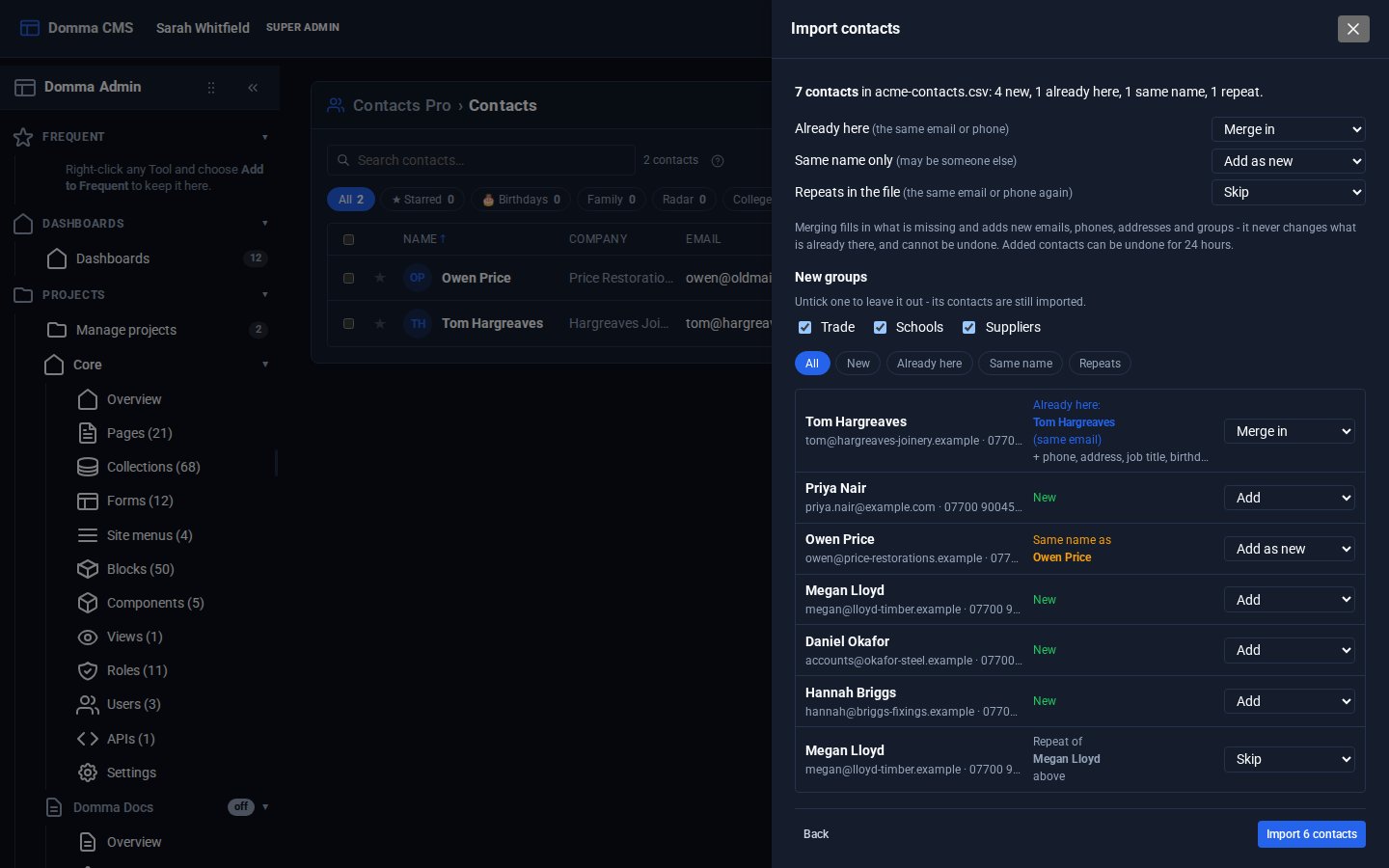
The preview lists every contact and what will happen to it:
- New - added.
- Already here - the same email address or phone number as one of your contacts. Phone numbers match however they are written, so
07700 900123and+44 7700 900123are one number. These are merged in: the importer fills in what is missing and adds new emails, phones, addresses and groups. It never changes what is already there. The line under the name says what a merge would add - "+ phone, birthday, 2 groups" - or "nothing new to add". - Same name - only the name matches. It may well be someone else, so it is added as new unless you choose Merge in.
- Repeat - the same person twice in the file. The second is skipped.
The choices at the top set a whole kind at once - for example Already here: Skip if you would rather not touch the contacts you have. Each row can then be changed on its own. Click New, Already here and the other chips to see one kind at a time.
New groups lists the Google labels you do not have as groups yet. Untick one to leave it out; its contacts are still imported, just not filed in it. Google's own My Contacts label is not a group, and Starred becomes a star.
Step 5: Import
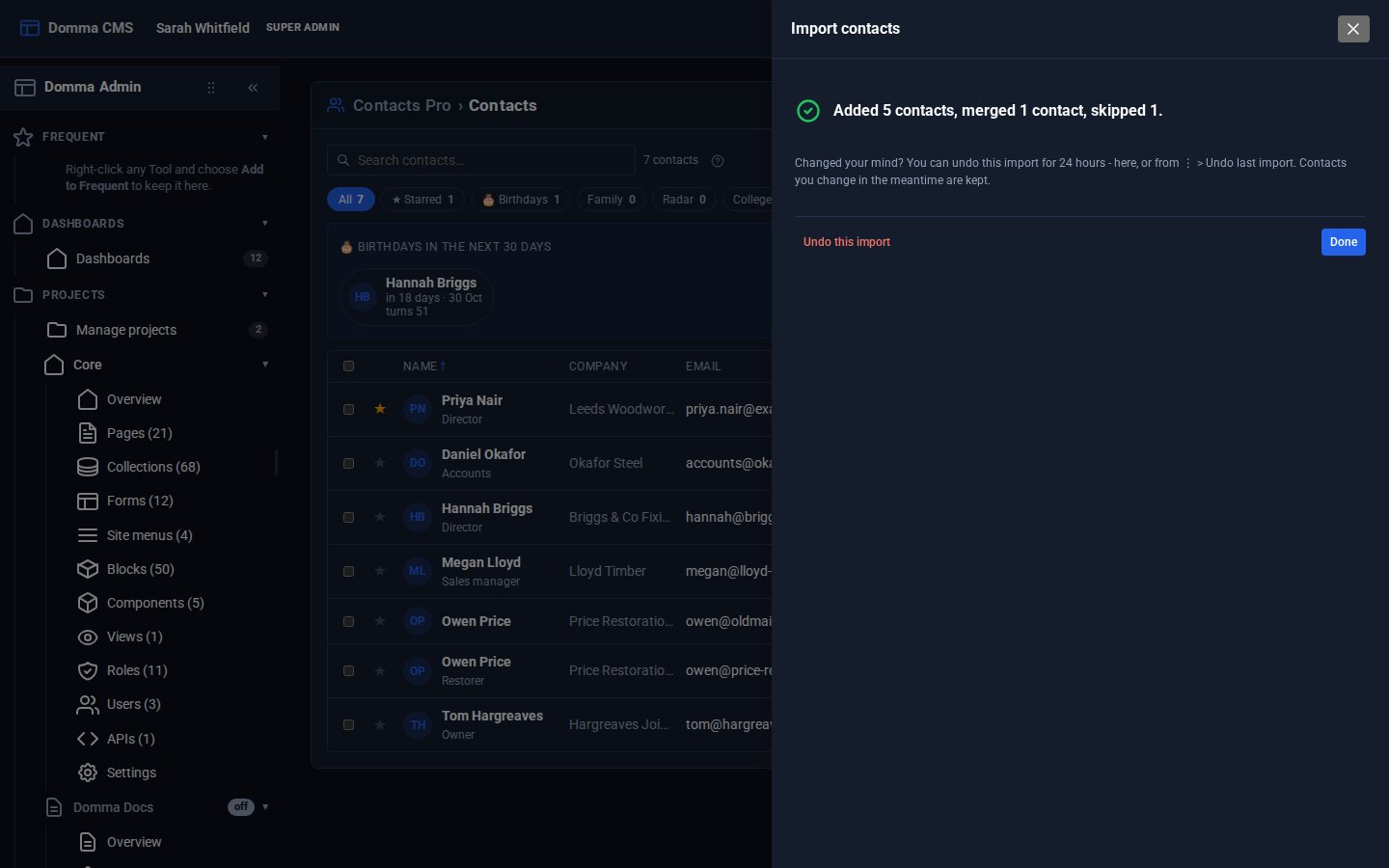
Click Import 214 contacts (or however many you chose). A bar shows how far it has got. When it finishes it says what happened - "Added 183 contacts, merged 31, skipped 4" - and lists any it could not save, with the reason.
Click Done and look at the list. The new groups sit in the chips along the top, starred contacts are starred, and anyone with a birthday in the next few weeks is already in the coming up strip.
Step 6: Undo, if you need to
Imported the wrong label, or the whole book twice? For 24 hours, click ⋮ and choose Undo last import… (or Undo this import on the last step of the importer).
Undo removes the contacts that import added. Any you have changed since are kept - you have worked on them. Groups the import created go too, as long as nobody's contacts are in them. Details merged into contacts you already had stay: a merge cannot be undone, which is why it only ever adds.
Other places your contacts live
The same importer takes:
- iPhone or Mac - on iCloud.com, select all, then Export vCard.
- Android - in the Contacts app, Fix & manage > Export to file.
- Outlook - People > Manage contacts > Export contacts, a CSV. Outlook's "Unicode" CSV works too.
- A spreadsheet - save it as CSV with a heading row, and match the columns in step 3.
Going the other way, ⋮ > Export all (vCard) saves your contacts as a .vcf file that Google Contacts, a phone or Outlook can import.
If something goes wrong
- "That does not look like a contacts file" - it is not a vCard, a CSV with a heading row, or a Contacts export. Export again from Google and choose Google CSV.
- Birthdays are on the wrong day - the file writes dates the American way, month first. Go Back to the columns and tick Dates are written month first.
- "No contacts found" - no column is going to a name, an email or a phone. Set one in the columns step.
- "Your role may add contacts but not change them" - merging changes a contact you already have, which needs the Edit permission for Contacts. Ask an admin, or choose Add as new or Skip for those rows.
- "An import can bring in at most 5,000 contacts" - export one Google label at a time.
What you built
An address book brought across from Google in one go: the people you already had filled in rather than doubled, labels as groups with their stars and birthdays, extra Google fields kept as columns of your own - and a day to change your mind.
Keep going
- Contacts Pro - custom fields, birthdays, styled groups and sharing
- Quotes and letters from templates - fill a quote with a customer's details from Contacts in one go
- Switching Tools on and off - Contacts Pro needs the built-in Contacts Tool on
Want Contacts Pro on your site?
Contacts Pro is a Pro Tool. Tell us about your site and we will set it up with you, your Google contacts included.